On this page
How to send a text with invisible ink on iPhone
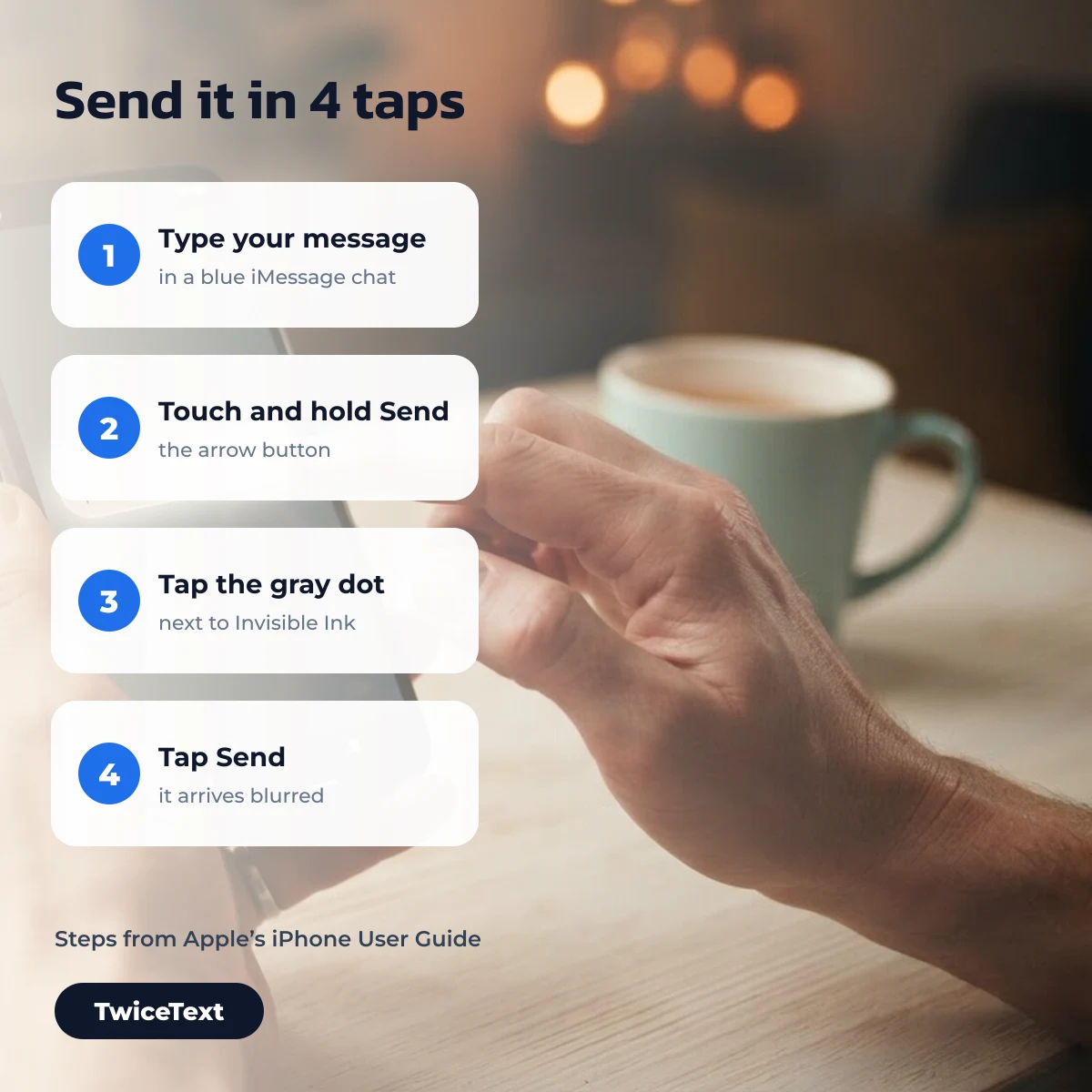
To send an invisible ink text, you add the Invisible Ink bubble effect in the Messages app before you send an iMessage. These steps follow Apple’s iPhone User Guide and message effects support page, which we checked on October 1, 2026:
- Open the Messages app and go to a conversation, or start a new message. The bubbles in that chat should be blue, which means it uses iMessage.
- Type your message (or insert a photo or a link).
- Touch and hold the Send button (the arrow).
- Tap the gray dot next to Invisible Ink to preview the effect.
- Tap Send. To change your mind, tap the cancel button instead and your message goes back to normal.
The same touch-and-hold menu also has the other bubble effects Apple lists: Slam and Loud, which make the bubble pop out, and Gentle, which makes it arrive softly. Tap Screen in that menu for full-screen effects such as fireworks, balloons and confetti.
Send a photo with invisible ink
Invisible Ink works on pictures too. Apple’s steps say you can enter a message “or insert an image or link” before you touch and hold Send, so a photo can arrive blurred in the same way as text.
What we have and haven’t done: the steps above come from Apple’s official guides. Our team has not yet recorded these steps on a specific iPhone and iOS version, so we don’t show our own screenshots here; the images on this page are illustrations.
How to read an invisible ink message
To read an invisible ink message, swipe over the blurred bubble with your finger. Apple describes the effect as one that “blurs the bubble until your recipient swipes to reveal it”. It is a visual effect on a normal iMessage, not a self-deleting message.
Why invisible ink is not showing
If invisible ink isn’t showing, the usual reason is that the message was not sent as iMessage. Apple says that to send and receive messages with effects, “you and your recipients must use iMessage”; otherwise messages appear in plain text. Check these points:
| What you see | Likely cause | What to try |
|---|---|---|
| Green bubbles, no effect menu | The chat uses RCS or SMS/MMS, not iMessage (Apple: iMessage vs RCS vs SMS) | Effects need iMessage on both sides; there is nothing to switch on for a green-bubble chat |
| No bubble effects anywhere | iMessage is off | Settings → Apps → Messages → turn on iMessage |
| Effects don’t play when you receive them | Motion settings (Apple: customize onscreen motion) | Settings → Accessibility → Motion; with Auto-Play Message Effects off, tap Replay under the bubble |
| Recipient sees bold or animated text as plain text | Text formatting and text effects need iOS 18, iPadOS 18, macOS 15 or later on their device | Ask them to update, or use a bubble effect only |
Does invisible ink work when sending to Android?
No. Messages from an iPhone to an Android phone go as RCS or SMS/MMS, which Apple shows as green bubbles, and message effects are an iMessage feature. Apple’s guide says that when iMessage isn’t used, messages appear in plain text, so the Android user just reads your words.
Invisible ink message ideas to copy
Invisible Ink is best for things the reader should open on purpose: a surprise, a spoiler, the punchline of a joke or good news. Copy a line below, paste it into your iMessage, then add the Invisible Ink effect before you send.
Lines worth hiding
Emoji for surprises and celebrations
Kaomoji reactions
Sparkle and gift symbols
Invisible ink vs invisible characters
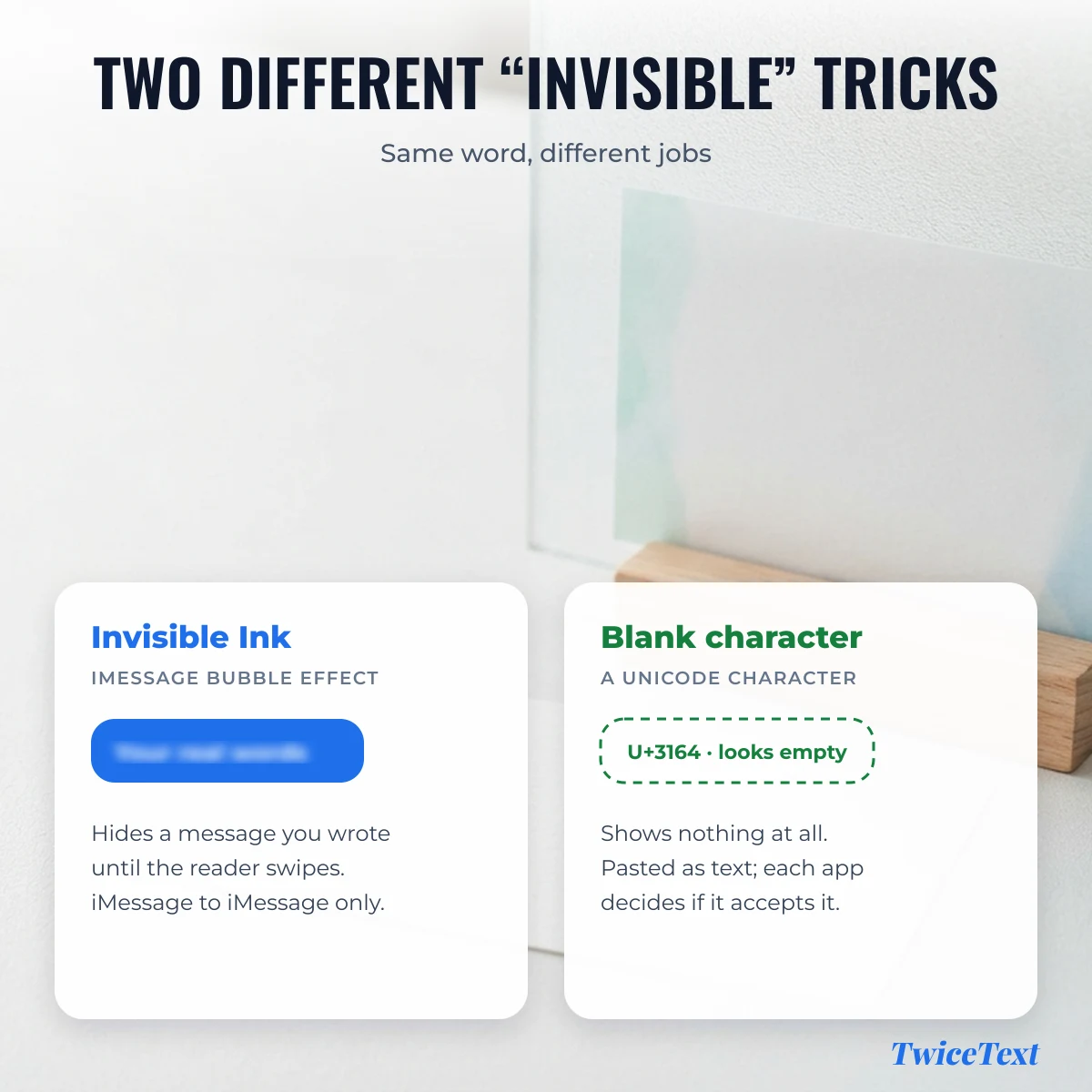
Invisible Ink and invisible characters are two different things. Invisible Ink hides a message you wrote until it’s swiped and only works in iMessage. An invisible character, such as U+3164 HANGUL FILLER, is a real Unicode character that looks empty, so you can paste it anywhere text goes; each app decides whether to accept it.
| Invisible Ink | Invisible (blank) character | |
|---|---|---|
| What it is | An iMessage bubble effect | A Unicode character that shows as empty space |
| What the reader sees | A blurred bubble, then your words after a swipe | Nothing, or an empty-looking message or name |
| Where it works | iMessage between Apple devices | Any app that accepts the character |
| How to get it | Touch and hold Send in Messages | Copy it from the tool at the top of this page |
The tool at the top of this page makes blank text: choose how many characters you need and tap Copy. It uses U+3164 HANGUL FILLER. If you need a different kind of blank, copy one from the groups below.
Blank characters you can copy
Each button below copies one character exactly as named; tap the ×5 button for five in a row. Names and code points come from the Unicode Character Database.
Hangul fillers
Wide blanks often used for empty names and messages.
Braille blank
Looks like a space but is not treated as whitespace by many apps.
Space characters
Real spaces of different widths; many apps trim them from the start and end of a message.
Zero-width characters
Take up no space at all. Useful between letters; on their own, apps often treat the text as empty.
Want a word or emoji repeated instead of blank space? The TwiceText text repeater copies any line up to 10,000 times.
Invisible ink FAQ
Do invisible ink messages disappear?
Apple describes Invisible Ink only as a bubble effect that blurs the message until the recipient swipes to reveal it. It is not described as a self-deleting message, so the text stays in the conversation.
Why would someone send a text with invisible ink?
People use it for surprises, spoilers, punchlines and photos they don’t want to show at a glance, so the reader decides when to reveal it.
Can someone see if you read an invisible ink message?
Apple doesn’t document a separate alert for revealing Invisible Ink. Read receipts, if the reader has them turned on, work the same way as for any other iMessage.
Can I send invisible ink from an Android phone?
No. Invisible Ink is an iMessage feature in Apple’s Messages app, and messages between iPhone and Android use RCS or SMS/MMS, which show as plain text.